Click Tools in the main menu bar to access the following useful tools available in PHPMaker.
Synchronization
Advanced Settings
Copy Table Settings
Copy Field Settings
Sort Tables Alphabetically
Languages
Locale Settings
Multi-Language Property Editor
Update Template
Menu Editor
Scripts and Stylesheets
Composer Packages
npm Packages
Database, Table and Field Variable Names
During the course of project development, it is common that you have altered your database schema. To save the effort of doing the customization from scratch again, PHPMaker provides you with the ability to synchronize your project data with the database. The synchronization process can be invoked in the following situations:
1. When working in PHPMaker
Simply click Tools->Synchronize
or click the button on the toolbar to perform the synchronization. PHPMaker will check automatically to see if
the database schema has been altered. If there are changes, you will
be prompted whether or not to proceed with the synchronization.
button on the toolbar to perform the synchronization. PHPMaker will check automatically to see if
the database schema has been altered. If there are changes, you will
be prompted whether or not to proceed with the synchronization.
When open a project file, PHPMaker will automatically check the database to see if the schema has been altered. You will be prompted to keep or update to the new schema.
Advanced Settings are some advanced general settings for PHPMaker, or some rarely changed settings for the project, or custom defined settings for use during code generation. Click Tools -> Advanced Settings to change these settings.
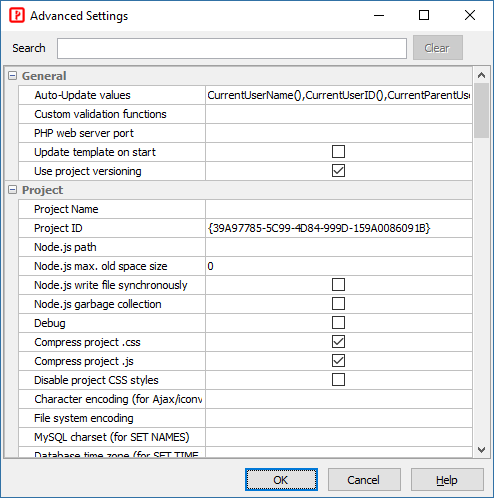
| General | General settings (for all projects) |
|---|---|
| Auto-Update values | The comma separated PHP function names for the Auto-Update feature (see Field Setup) You can add your own functions by putting your functions in the server side Global Code section (see Server Events and Client Scripts) and then add your function name here. The function name must follow the standard rules for naming variables in PHP. |
| Custom validation functions | The comma separated function names for the Validate feature (see Field Setup) You can add your own PHP/JavaScript functions for custom server/client-side validation. The function name is used for both PHP and JavaScript, so it must be a valid function name for both languages. You can put your server-side and client-side validation function in the Global Code (see Server Events and Client Scripts) section of server-side and client-side respectively. |
| Check new version on start | Check if there is a new version on start |
| Update template on start | Check and update template on start (for registered users only) |
| Use project versioning | Enable project versioning. If enabled, whenever you save your project, a version of the project will be created. You can click Project -> History to view the versions and revert to any version. See Project File for details. |
| Grid scrollbar mode (UI) | The scrollbar mode of the grids in the UI. Possible values: "Default" or "Classic". If you prefer the old style, switch to "Classic". |
| Code editor (UI) | The code editor in the UI. Possible values: "Default" or "Classic". The "Default" editor is a browser-based editor, WebView2 Runtime is required. If you prefer the old editor, switch to "Classic", then close and open PHPMaker again. |
| Project | Project-specific settings |
|---|---|
| Project name | Project name. See Project File for more info. Note It is recommended that you use only alphanumerical characters in lowercase in project name. |
| Project ID | Unique ID of the project. Do not change the project ID unless absolutely necessary. See Project File for more info. |
| Node.js max. old space size | Memory limit of Node.js (MB). If your project is large, you may need to increase the memory limit, e.g. you can set it to 2048, 3072, 4096, etc. Notes
|
| Node.js write file synchronously | Write file synchronously. By default, output files are generated asynchronously. Use this setting if writing file synchronously performs better on your system. |
| Node.js garbage collection | Use Node.js garbage collector to clean up memory regularly during generation.
Note Cleaning up memory manually will slow down generation, only enable this setting if you encounter out of memory problem.
|
| Debug | Show the SQL and runtime error for debugging. |
| Treat PHP warnings and notices as errors | For use with Debug enabled only. Report all PHP errors by error_reporting(E_ALL) and treat PHP warning and notices as errors. |
| Log SQL to file | Log SQL to file. The log files can be found under the Log file folder, see PHP Settings. |
| Log error to file | Log runtime error to file. If Debug is enabled, the setting will also be enabled. The log files can be found under the Log file folder, see PHP Settings. |
| Environment | Environment of application. Possible values: development or production. Default value is development. After development, you can generate the application again with enviroment as production, then the application will use the config.production.php instead of the config.development.php. The config.production.php contains production database connection, SMTP server and JWT settings. |
| Generate production config file | Whether to generate the config.production.php. Enable this setting if you have updated the config.production.php manually and you do not want it to be overwritten by later generation. |
| Compile container for production | PHPMaker uses PHP-DI, the dependency injection container can be compiled into PHP code optimized especially for your configuration and your classes. If the environment (see above) is set as production, and this setting is enabled, then compilation will be enabled. Notes
|
| Generate route groups | Whether to generate route groups so that user can also use alternative route for table, e.g. /cars/list instead of /carslist. Default is true. If that is unnecessary or you have a large number of tables, you can turn it off for better routing performace. |
| Use route cache for production | Whether to enable to enable router cache. If the environment (see above) is set as production, and this setting is enabled, then route cache will be enabled. If you have a large number of tables, you can enable this for better routing performance.
Notes
|
| RewriteBase directive | The RewriteBase directive specifies the URL prefix to be used for per-directory (htaccess) RewriteRule directives that substitute a relative path. For Apache only. If your web servers requires this setting, enter the URL prefix for the project folder here. |
| Generate .htaccess | Whether to generate the .htaccess for Apache. Enable this setting if you have your own .htaccess and you do not want it to be overwritten by .htaccess from the template.
Notes
|
| Generate web.configs | Whether to generate the web.config for IIS. Enable this setting if you have your own web.config and you do not want it to be overwritten by web.config from the template.
Notes
|
| Compress project .css | Compress the project stylesheet (e.g. <project>.css) and output minified .css file. |
| Compress project .js | Compress project JavaScript (e.g. Client Script and Startup Script, see Server Events and Client Scripts) and output minified .js. |
| Disable project CSS styles | Do not generate the project stylesheet. Note If you use this setting, there will be no CSS styles generated for the scripts and the HTML will be malformed, make sure you provide your own CSS styles, for example, by specifying your own stylesheet, read HTML Settings. |
| Character encoding (for Ajax/iconv) | Specify the encoding for Ajax/iconv Some features such as Ajax require conversion between your encoding and utf-8. If you use non English languages, you may need to set character encoding for these features. By default PHPMaker will setup the encoding automatically based on your project's Charset setting. If that is incorrect, you can specify yours. Make sure either iconv functions or multibyte string functions are enabled and your encoding is supported. See PHP manual for details. |
| File system encoding | The encoding of the file system of the server. When saving a file to the server, the file name need to be converted to the file system encoding. If your project charset/encoding is different from the file system encoding and you accepts non alphanumeric file names, enter the file system encoding of the server |
| Validate NOT NULL fields | By default PHPMaker will detect fields declared as NOT NULL in the database (and without default value in database or the project) and force "Required" validation. If for some special reason you need to disable this feature, disable this setting. |
| Add novalidate attribute to form | Add novalidate attribute to HTML <form> element. The novalidate attribute indicates that the form shouldn't be validated when submitted. Since PHPMaker uses its own validation, you might want to disable browser's form validation. |
| Allow login by URL | Allow passing username and password to the login page as URL parameters. By default the login page accepts HTTP POST only. If this setting is enabled, it accepts HTTP GET also, then user can login by URL , e.g. login?username=xxx&password=yyy (where "yyy" is a plain text password) For example, this allows user login by using PHP cURL from your own scripts. For example, this allows login by your own scripts. For security, you should pass encrypted username and password whenever possible. You can decrypt them with your code by User_CustomValidate server event before validation, see Server Events and Client Scripts. |
| Allow login by session variables | Allow passing username and password to the login page via session variables. By default the login page accepts HTTP POST only. If this setting is enabled, it accepts session variables also, then user can auto-login by setting some session variables , e.g. $_SESSIONPROJECT_NAME . "_Username" = "xxx"; // where PROJECT_NAME is the constant of your project name (see above) and "xxx" is user name |
| Remove XSS | Specify if sensitive keywords allowing XSS attack should be removed. If enabled, all user input string will be checked against an array of sensitive keywords. If discovered, those keywords will be removed to prevent XSS attack. If this behavior is unwanted, you can disable this feature at your own risk. Re-generate and re-upload the config.php after changing this setting. XSS removal is done by HTML Purifier with default configuration, if you just want to customize the configuration, you can use server side Global Code (see Server Events and Client Scripts) to modify the global variable $PurifierConfig which is used to create instance of HTMLPurifier, e.g. $PurifierConfig = \HTMLPurifier_Config::createDefault(); Read HTML Purifier configuration documentation for details. |
| Check token for form post | Check synchronizer token for forms with method="post". Synchronizer token is used to prevent Cross-Site Request Forgery (CSRF). If you add your own HTML forms with method="post", you should add the token to your form by a hidden tag, e.g. <input type="hidden" name="token" value="<?= CurrentPage()->Token ?>"> |
| Session timeout period (minutes) | Specify the session time-out period if the user does not refresh or request a page. PHP has its own settings for session timeout, you can configure them in php.ini, read Runtime Configuration, but sometimes you may want to control the session period yourself, then you can setup BOTH this setting and the Session keep alive interval (seconds) setting (see below) to a positive value. |
| Session keep alive interval (seconds) | Specify the interval to send Ajax request to the server for keeping the session alive. Notes
|
| Session time out countdown period (seconds) | Specify the countdown period before session ends. When the session is about to end, a modal dialog will show up to remind user and let the user choose to continue the session. If the user does not respond after the countdown period, the session will expire. |
| Composite key separator | The separator between key values of a composite key. Default is ",". If your primary key values are of string type and contain commas also, the commas will affect parsing of the composite key value in the script and lead to failure of locating a record, you can change the separator to avoid such problem. |
| Export all time limit | Set time limit (seconds) when exporting all records |
| Export field caption | Export field caption instead of field names during export. (For tables/views only.) |
| Export field images | Export field images for image fields during export. If uncheck, the original field value is exported. (For tables/views only.) |
| Export original values | Export original field values instead of looked up values (for fields setup with user values or lookup tables) during export. (For tables/views only.) |
| Export CSS styles | Export HTML/Excel/Word with CSS styles (e.g. for keeping the row color in the exported file).
Note Not application to PhpSpreadsheet and PHPWord extensions (for registered users). |
| Export master record | Specify if master record should be exported during exporting master/detail records. (Not applicable to CSV) Default is true. |
| Export master record for CSV | Specify if master record should be exported during exporting master/detail records to CSV. Default is false. If master record is exported, the result CSV may not be imported into other application. If you want to export it anyway, enable this setting. |
| Export detail records in Master/Detail-View | Specify if detail records in View page of master table (in Master/Detail-View) should be exported. Default is true. |
| Export detail records for CSV in Master/Detail-View | Specify if detail records in View page of master table (in Master/Detail-View) should be exported for CSV. Default is false. |
| Show vertical master record in List Page | Specify if master record in List page of detail table should be displayed in vertical format. Default is true. |
| Language files | The default language files for a project. (For use with Multi-Language.) |
| Allow no paging section | Allow no paging section in List page. If both paging section at top and that at bottom are disabled, users will not be able to go to the second or later pages of the recordset. The scripts will use paging section at bottom by default to make sure paging is possible. If you want to allow no paging section (e.g. you always have all records in one page), enable this setting. |
| Auto hide paging section if single page | If only one page (i.e. number of records <= page size), hide the paging section automatically. |
| Auto hide page size selector if single page | If only one page (i.e. number of records <= current page size), hide the page size selector section automatically. Note Beware that if you auto hide the page size selector, user cannot change page size, even one or more selectable page sizes are smaller than the current number of records. |
| Initiate search panel as collapsed | Specify if the search panel should be initialized as collapse on page load. |
| Blob field byte count for hash value calculation | For use with Check Conflicts (see Table Setup). Specify the number of bytes for calculating the hash value . Default is 200. Check Conflicts will increase the time required to load the page, for better performance only the first hundreds of bytes of the BLOB fields are processed by default, but there are chances that change of BLOB data is not detected (if the first nth bytes are not changed). You can increase the number of bytes, if you want to process all bytes, enter 0. |
| Auto-Suggest maximum display entries | Specify the number of options to be displayed during Auto-Suggest. Default is 10. |
| Auto-Suggest all display fields | Specify if Auto-Suggest should consider Display field #2 to #4. By default lookup only uses Display field #1 and only finds records with Display field #1 that STARTS WITH the input characters. It this setting is enabled, Auto-Suggest finds records with Display field #1 to #4 that CONTAINS the input characters |
| Lookup page size | Page size of modal lookup. Modal lookup supports pagination (infinite scrolling), this setting specifies the number of records per page. |
| Filter page size | Page size of column header filter. Filter supports pagination (infinite scrolling), this setting specifies the number of records per page. |
| Auto-fill original value | For use with Auto-Fill (see Field Setup). By default the looked-up value (if any) will be used to fill the target field, enable this option to use the original (database) value instead. |
| Grid-Add row count | Specify the initial number of blank rows in Grid-Add and Master/Detail-Add mode. Default is 5. |
| Use View Tag format for edit | Specify if the View Tag format should be used during editing. By default all decimal digits as outputted by the database will be used in Edit page, for example, if a number is 1.23456 in database, the Edit page will also show 1.23456 even you may have specified just 2 decimal digits in View Tag panel (see Field Setup). If you want to show the number as in the View page, you can enable this setting. However, note that after saving the record, the number will be saved as 1.23 only even you have not edited the field value. Note If you enable this setting, there may be loss of precision after saving the record. Only use this setting when precision is unimportant. |
| Connection info of production server (JSON) | Specify connection info of databases for production server in JSON, e.g. { "DB": { "user": "foo", "password": "bar", "ssl_xxx": "...", ... } } Notes
|
| Database time zone (for SET TIME ZONE) | Specify the database time zone for MySQL/PostgreSQL/Oracle. |
| MySQL charset (for SET NAMES) | Specify the charset for MySQL SET NAMES statement. If actual charset encoding of your data is different from the charset of your project, you may need to specify this setting for MySQL to convert between them. Read Connection Character Sets and Collations before using this setting. |
| Collation for LIKE operator (MySQL) | Use the specified COLLATION for the LIKE operator (for MySQL only). |
| MySQL driver | Specify MySQL driver for PHP. Possible values: mysqli or pdo_mysql. Default is mysqli. |
| Use ILIKE operator (PostgreSQL) | Use ILIKE instead of LIKE for case-insensitive search (for PostgreSQL only). |
| Collation for LIKE operator (Microsoft SQL Server) | Use the specified COLLATION for the LIKE operator (for Microsoft SQL Server only). |
| Oracle charset | By default the project character is also used for connecting to Oracle. If you need to use a different charset, specify it with this setting. |
| Oracle compare | For setting Oracle's NLS_COMP parameter. Requires Oracle 10gR2 (or later). Possible values are: BINARY, LINGUISTIC, ANSI. For example, if you want to do case insensitive search you can select LINGUISTIC. |
| Oracle sort | For setting Oracle's NLS_SORT parameter. Requires Oracle 10gR2 (or later). For example, if you want to do case insensitive search you can enter "BINARY_CI" (no double quotes). |
| Multiple option separator | For use with Dynamic Selection List. Specify the separator for multiple selected values. Default is ",". |
| Use lookup cache | If enabled, lookup data will be cached in memory so all subsequent calls to lookup will use the cache data instead of database access. |
| Lookup cache count | The maximum number of records for lookup cache. Used in conjunction with Use lookup cache. If the total number of records in a lookup is more than this value, lookup data will not be cached. |
| Import maximum execution time (seconds) | Maximum executing time for import. Default value is 300 (5 minutes). Change to a larger value if you allow importing a lot of records. |
| Import records by insert only | Only insert is performed. Default value is true. Uncheck if you also want to update records with the same primary key.
Important
|
| Import records by transaction | Use transaction for import. Default value is false. Change to true if you want an ALL OR NOTHING import. |
| Import supported file extensions | Supported file extensions for import (comma separated) |
| Import from CSV delimiter | Delimiter of CSV file for import. Default value is , (comma). |
| Import from CSV quote character | Quote character of CSV file for import. Default value is " (double quote). |
| Web root relative path | Path of the web root relative to project folder. The project folder is the folder where the generated scripts reside. All relative paths (e.g. file upload paths) are relative to the web root. By default the web root is same as the project folder, so the value of this setting is "." (no quotes) or empty. It is recommended that you use this default value, only change it if you must use a web root folder which is not the same as the project folder. Note Web root relative path MUST be a physical ancestor folder of the project folder, say, the physical parent folder of the project folder. It cannot be a virtual path. Therefore, the value can only contains ".", ".." and "/". |
| Create upload file on copy | Specify if an uploaded file should be copied when copying a record with file upload fields. (For use with file upload to folder.) Default is false. If the option Delete file on update/delete (see PHP settings) is enabled, the uploaded file will be deleted. If the deleted record is a copied record, deleting the uploaded files will affect the original record. To prevent such possible problem, enable this setting to duplicate the uploaded file when copying a record. |
| Multiple file upload separator | Specify the file upload separator used to separate the file names. By default, comma is used. If you allow file names with comma, you can enter another separator, e.g. "|". |
| Upload preview thumbnail width (px) | The width of the thumbnail displayed during the upload process. |
| Upload preview thumbnail height (px) | The height of the thumbnail displayed during the upload process. |
| Encrypt file path | Encrypt upload file path if enabled. |
| File upload URL path | Specify the URL path of uploaded files. Default is empty, meaning that the path of the global or field specific upload folder will be used. However, under some rare cases, the URL path cannot be derived from the upload folder, then you can specify it explicitly. |
| File upload path (absolute) for temporary files | Specify the file upload path (absolute) for temporary files. If this setting is used, the matching File upload URL path (absolute) for temporary files (see below) must also be set. When working with file upload fields, some temporary files will be created and then deleted in a temporary folder. Default is empty, meaning that the global upload folder will be used. However, under some rare cases, you may want to specify your own. This path must be physical and it must be accessible by the web server, e.g. /some/real/path/ or D:\some\real\path\, and is accessible by URL (see next). |
| File upload URL path (absolute) for temporary files | Specify the file upload URL path (absolute) for temporary files, e.g. /my/virtual/path/ (root-relative URL) or //www.mycompany.com/my/virtual/path/ (protocol-relative URL). If File upload path (absolute) for temporary files (see above) is used, this setting must also be set so that the temporary files can be accessed by URL. |
| Thumbnail default width (px) | For use with image resize. If a target resize width is <= 0, this default width will be used. If this setting is also 0, the width will be auto-adjusted to keep the aspect ratio. |
| Thumbnail default height (px) | For use with image resize. If a target height width is <= 0, this default height will be used. If this setting is also 0, the height will be auto-adjusted to keep the aspect ratio. |
| Use Colorbox for images | Specify if colorbox should be used to displayed full size image on clicking the thumbnail in the List/View page. Default is true. |
| Reduce image size only (image resize) | Do not resize if image is smaller than the resize dimension. |
| Always keep aspect ratio (image resize) | Keep aspect ratio during image resize. |
| Embed PDF documents | Show PDF documents using PDFObject as embedded documents instead of hyperlinks. |
| Allowed image file extensions | File extensions that will be treated as images for download. Comma separated. |
| Allowed non-image file extensions | File extensions that will be treated as non-image download files. Comma separated. |
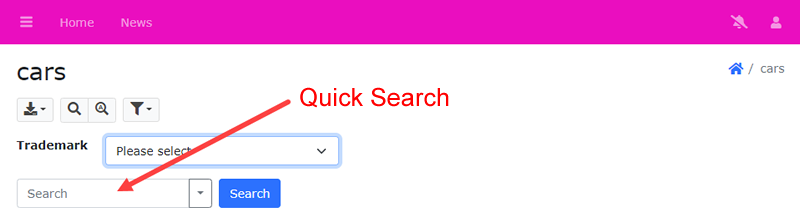
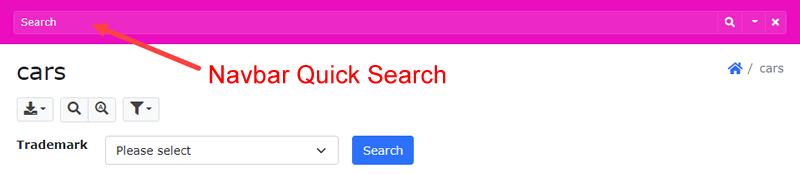
| Navbar Quick Search | Whether to put the Quick Search input in the top navbar. By default the Quick Search input is at the bottom of the Extended Search form in the List page of a table. If this setting is enabled, the Quick Search input will be moved to the navbar. |
| Search keywords in any selected fields (Quick search) | For use with "All words"option of Quick Search, allows searching all keywords in any fields selected for Quick Search. When searching "All words" with Quick Search (see Table Setup), by default all keywords must be found in the same field. This option provides an alternative searching behavior. |
| Search multiple value option | Option for searching fields that store multiple values as comma separated string. Valid values are: (Default is 3) |
| Search filter save option | Specify where to save the search filters. Possible values are: Server, Client, None. Default is Client, i.e. save by browser's localStorage. Note If you choose Server, the Profile field (see Security Settings) must be set up for storage. |
| Search option | Searching behaviour when users perform quick/extended search in the list page. Possible values below. Default value is AUTO. AND - all keywords OR - any keywords AUTO - based on quick search keyword option |
| Sort option | Sorting behaviour when users click the List page table column header. Possible values: Toggle - asc/desc Tristate - asc/desc/none |
| Replace textarea by text input for search | Replace textarea by textbox in Search page and Extended Search. Default is true. |
| Minimum password strength | Minimum password strength if check password strength is enabled. |
| Password length | Password length when generating a random password. |
| Use password hash | For used with Hashed password (previously MD5 password), see Security Settings. If this setting is enabled, PHP password_hash function will be used to create password hash. By default CRYPT_BLOWFISH algorithm will be used. If this setting is disabled, the old md5 function will be used. Note Beware that if you enable this setting but the user table is still storing old MD5 passwords, users will NOT be able to login. Since MD5 passwords cannot be decrypted, you MUST reset the passwords for the users first or ask users to reset their passwords themselves. |
| Encrypt user name and password | If enabled, the administrator, database and SMTP server user name and password stored in the config file will be encrypted by php-encryption. Notes
|
| Invalid user name characters | If Remove XSS is enabled, some characters are not allowed to be used in user names. Default value is <>"'&. You may add other characters, but you should not remove any characters from the default value. |
| Invalid password characters | If Remove XSS is enabled, some characters are not allowed to be used in passwords. Default value is <>"'&. You may add other characters, but you should not remove any characters from the default value. |
| Encryption key for data protection | Encryption key used by php-encryption. Use with Encrypt administrator and database user name and password (see above). |
| Add plain text version in HTML email | Add plain text version when sending HTML email. |
| PHPMailer mailer | Specify the mailer used in PHPMailer when sending emails. Default is "smtp". |
| Max email recipient | For use with Export (Email). (see PHP Settings.) Default is 3. To avoid abusing the export to email feature, the number of email addresses in the recipient field is limited to the specified value. |
| Max email sent count per session | For use with Export (Email). (see PHP Settings.) Default is 3. To avoid abusing the export to email feature, the number of emails can be sent by the user in each session is limited to the specified value. |
| Use User ID for audit trail | Use user id value for audit trail if User ID Security is enabled. |
| Use Bootstrap Toast message | Use Bootstrap Toasts to display messages of the application. By default the messages are displayed above the main table. This options uses Bootstrap Toast to show the message instead. Default is true. |
| Use Bootstrap Switch for boolean fields | Use Bootstrap Switches (instead of checkboxes) to display boolean values. |
| Use Bootstrap responsive table | Use Bootstrap Responsive tables. A scrollbar will appear at the bottom of the table if the table is wider than screen. Default is true. |
| Responsive table class | The responsive table class name to use if use Bootstrap responsive tables. Possible values are: table-responsive, table-responsive-sm, table-responsive-md, table-responsive-lg, or table-responsive-xl. Default is table-responsive. |
| Fullscreen modal class | Bootstrap CSS class for Fullscreen Modal dialogs. Possible values are: modal-fullscreen, modal-fullscreen-sm-down, modal-fullscreen-md-down, modal-fullscreen-lg-down, modal-fullscreen-xl-down, modal-fullscreen-xxl-down. Default is modal-fullscreen-sm-down, i.e. full screen modal will be used for mobile devices. |
| Use native SELECT tag for select-one fields | Use native <select> HTML element for select-one fields. By default all<select> tags (fields with SELECT Edit Tag, see Field Setup) will be replaced by Select2 tags for more features. However, if this setting is enabled, native <select> tag will be used for select-one fields. Notes
|
| Use drop zone for file upload fields | Use drop zone for file upload fields. If enabled, an file upload field looks like: Otherwise, they are regular Bootstrap file input fields. |
| Use OverlayScrollbars | Use OverlayScrollbars as scrollbars for responsive tables. |
| Form left column CSS class | Specify the left column CSS class for all forms. This CSS class controls the width of the left column. Possible values are: col-sm-2, col-sm-3, col-sm-4, col-sm-6. Default is col-sm-2. See Bootstrap Horizontal form for details. |
| Multi-column List page grid CSS class | Specify the CSS class for multi-column List page table layout. Possible values are: row-cols-sm, row-cols-md, row-cols-lg. Default is row-cols-md. See Bootstrap Row columns for details. |
| Multi-column List page card CSS class | Specify the CSS class for multi-column List page card layout. |
| Multi-column List page card button position | Specify the position of the button for list options in card header/footer. Possible values are: top-end, top-start, bottom-end, bottom-start. Default is bottom-start. |
| Multi-column List page card left column CSS class | Specify the left column CSS class for the data in cards of multi-column List page. This CSS class controls the width of the left column. Possible values are: col-sm-2, col-sm-3, col-sm-4, col-sm-6. Default is col-sm-4. See Bootstrap Horizontal form for details. |
| Use tabular form for desktop | By default Bootstrap Horizontal form is used in Add/Edit/Search/Update/Registration pages, this option makes the scripts use Bootstrap table instead. Notes
|
| Use dropdown for button group in mobile | Use button dropdown instead of button group to save more spaces for data in mobile mode. Default is true. |
| Use place holder for text box | Add placeholder attribute to form elements automatically. Possible values are:
|
| AdminLTE layout class | AdminLTE layout class. Possible values are: layout-fixed, layout-top-nav, layout-boxed, layout-navbar-fixed, or layout-footer-fixed. Default is layout-fixed. Note PHPMaker template is based on the fixed layout only. If you change the layout using this option, there may be unexpected behavior and you may need to add some adjustments by CSS (and JavaScript) yourself. AdminLTE is not written by the author of PHPMaker. NO TECHNICAL SUPPORT WILL BE PROVIDED. |
| Page title style | Specify the page title style. Possible values are:
|
| Authentication mode | Authentication mode: Possible values are: Windows, LDAP. If not specified, no authentication. Notes
|
| LDAP host name | LDAP server host name
Note It may not be necessary to include ldap://, test with your LDAP server first. |
| LDAP port number | LDAP server port number, e.g. 389 |
| LDAP distinguished name | LDAP distinguished name for login (if the distinguished name requires additional info other than the user-inputted user name), e.g. uid={username},dc=example,dc=com. If no additional info is required, leave this setting empty.
Note The generated script will replace {username} by the user name inputted by user in the login page automatically during login. |
| LDAP options | PHP array of options, for use with ldap_set_option, e.g. LDAP_OPT_XXX => "xxx". By default the following options are already set: LDAP_OPT_PROTOCOL_VERSION => 3, LDAP_OPT_REFERRALS => 0 |
| Google client ID | Enable Google Sign-In. Requires both Google client ID and Google client secret. To create client id and secret, read Creating a Google API Console project and client ID. Note When you configure your project at google.com, the Authorized Redirect URI should be set as https://www.company.com/myproject/login?provider=Google, replace "https://www.company.com/myproject" by the real URL of your project.
|
| Google client secret | Enable Google Sign-In. Requires both Google client ID and Google client secret. To create client id and secret, read Creating a Google API Console project and client ID. |
| Facebook app ID | Enable Facebook Login. Requires both Facebook app ID and Facebook app secret. To implement Facebook Login, you need a Facebook App ID before you start, which you can create and retrieve on the App Dashboard. Read Register and Configure an App.
Note When you configure your app at App Dashboard, the Redirect URI should be set as https://www.company.com/myproject/login?provider=Facebook, replace "https://www.company.com/myproject" by the real URL of your project. |
| Facebook app secret | Enable Facebook Login. Requires both Facebook app id and Facebook app secret. To implement Facebook Login, you need a Facebook App ID before you start, which you can create and retrieve on the App Dashboard. Read Register and Configure an App. |
| Use cookie policy | For compliance with EU's General Data Protection Regulation (GDPR). If enabled, show cookie consent and privacy page. |
| Use Personal Data Page | For compliance with EU's General Data Protection Regulation (GDPR). If enabled, allow user to download and delete personal data. |
| Cookie Expires (days) | Specify cookie Expires in days. See Set-Cookie. |
| Cookie HttpOnly | Specify cookie HttpOnly in days. |
| Cookie Secure | Specify cookie Secure in days. |
| Cookie SameSite | Specify cookie SameSite in days. Possible values: Strict, Lax, None. The None value requires the Secure attribute. |
| API JWT signing secret key | The secret key used to sign the JSON Web Token (JWT). Non-optional, make sure you use different values for different projects and keep it in a secret place |
| API JWT signing algorithm | The algorithm used to sign the JWT. Default is HS512. For more possible values refer to JWT web site: https://jwt.io/introduction. |
| API JWT authorization header | The name of the header storing the JWT. Default value is X-Authorization |
| API access time after login (seconds) | Time you can access the protected resources after login. Default value is 0. If you want delay access, you can change it to 10. |
| API expire time after login (seconds) | The JWT expiry time. Default value is 3600 (60 minutes). Users will need to authenticate again once the JWT expires. |
| API custom headers | If enabled, Access-Control-Allow-Origin, Access-Control-Allow-Headers and Access-Control-Allow-Methods will be issued by IIS/Apache. Default is false.
Notes
|
| API Access-Control-Allow-Origin | The Access-Control-Allow-Origin header. If unspecified, default value is "*" so the REST API can be accessed by external apps. |
| API Access-Control-Allow-Headers | The Access-Control-Allow-Headers header.
Note CORS-safelisted request headers are always allowed and hence usually aren't listed in Access-Control-Allow-Headers (unless there is a need to circumvent the safelist additional restrictions). |
| Use Swagger UI for API | Whether to allow testing API sctions with Swagger UI at http://mysite/basepath/swagger/. |
| Session-less API actions | API actions that does not require PHP session. Comma separated value of API action names without spaces, e.g. "file,lookup". Default is "file". By default, each session is stored in the filesystem. The session file is read once when session_start() is called and written to disk when the script ends. To avoid conflicts, session files are locked during script execution. The read/write and locking processes are expensive. This setting allows you to improve API performance by not starting session for some API actions, e.g. "file". Note Before adding API actions, make sure your actions do not rely on any session variables. For example, if you want to add "lookup", make sure your lookup table filters (if any) do not use any session variables. |
| Show current filter | Whether to show current filter, for example, for debug. Default is false. For reports only. |
| Show blank series for chart | Whether to show blank series for chart. Default is false. For charts only. |
| Show zero values in stacked chart | Whether to show zero values in stacked chart. Default is false. For charts only. |
| Show missing chart series values as zero | Whether to show zero/null values for missing chart series values in multi series chart with series field. Zero is returned if enabled and null is returned if disabled. For charts only. |
| Use popover for drill down | Use Bootstrap Popover to show the detail report in the same page. If disabled, user will be redirected to the drill down report directly after clicking the drill down link. Default is true. For reports only. |
| Show drill down filters | If enabled, show current drill down filters in the detail report. Default is true. For reports only. |
| Chart column CSS class (left or right) | Specify the column CSS class for charts with position either on the left or right only. Possible values are: col-sm-3, col-sm-4, or col-sm-6. Default is col-sm-6. For charts only. |
| Chart column CSS class (left and right) | Specify the column CSS class for charts with positions on both left and right. Possible values are: col-sm-3 or col-sm-4. Default is col-sm-4. For charts only. |
| Chart color palette | Default chart color palette. Comma separated color values. For charts only. |
| Chart scale begin with zero | Start chart scale from 0 instead of chart default. |
| Chart scale minimum value | Specify chart scale minimum value instead of using chart default. |
| Chart scale maximum value | Specify chart scale maximum value instead of using chart default. |
| Show percentage in Pie/Doughnut charts | Whether to show percentage in Pie/Doughnut charts |
| Git repo URL | The Git repo URL of your project, e.g. https://github.com/myaccount/myproject.git.
Note Currently only GitHub is supported.
|
| Git user name | User name of the Github account for the Git repo.
Note Since this is a project setting, it is saved in the project file, but the project file is uploaded to the Git repo, there is security concern. To protect your Github account, the Git repo URL, Git user name and Git password are encrypted before being saved. When you save the project after enabling Git repo URL, you will be prompted to enter a Team Encryption Key. This key is only saved in Window registry, you should share this key with other users of your team so that they can decrypt when they sync their local projects with the repo. DO NOT store the Team Encryption Key in the repo. |
| Git personal access token | Personal access token of the Github account for the Git repo.
Note Beginning August 13, 2021, Github will no longer accept account passwords when authenticating Git operations and will require the use of token-based authentication, such as a personal access token, for all authenticated Git operations on GitHub.com. See Creating a personal access token for details. |
| Git auto fetch | Whether to do git fetch periodically to retrieve new work done by other people. |
| Git auto fetch period (seconds) | Time interval to do git fetch. |
| Prompt for Git commit message | Whether to prompt you to enter a Git commit message when you save your project. If not enabled, the default commit message is generated from the time when you save. |
Copy Table Settings
If you use database built-in query/view to make an alternate version of a table, you need to set up the table and field settings again, this tool help you quickly copies table and field settings from the source table to the view. Click Tools -> Copy Table Settings to open the following form:
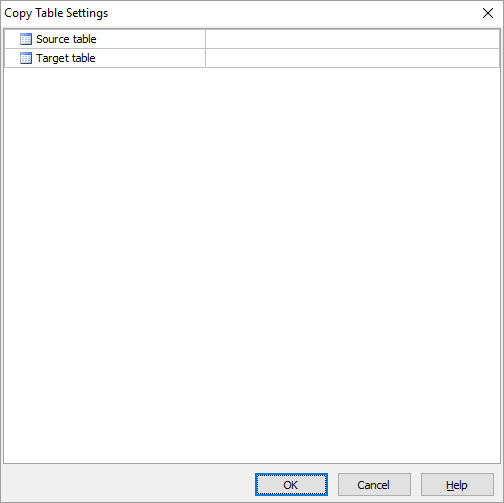
Select the Source table and the Target table (e.g. the query/view), click OK to copy the table settings. If a field in the target table has the same name as that in the source table, field settings will also be copied.
When you create a Custom View, PHPMaker allows you to copy field settings from the source table. However, when database built-in query/view is used, you need to set up the field settings again, this tool help you quickly copies field settings from the source table to the view. Click Tools -> Copy Field Settings to open the following form:
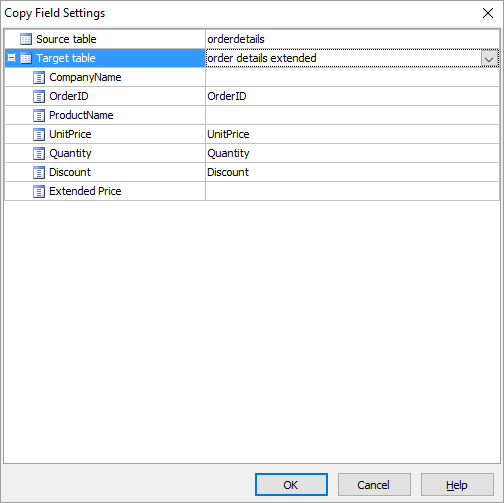
Select the Source table and the Target table (e.g. the query/view), the fields of the target table will be listed in the left column, you can then select the respective source fields (from the specified source table) in the right column and click OK to copy the field settings.
If you prefer to have the table list displayed in the user interface in alphabetical order, click Tools -> Sort Tables Alphabetically to do so.
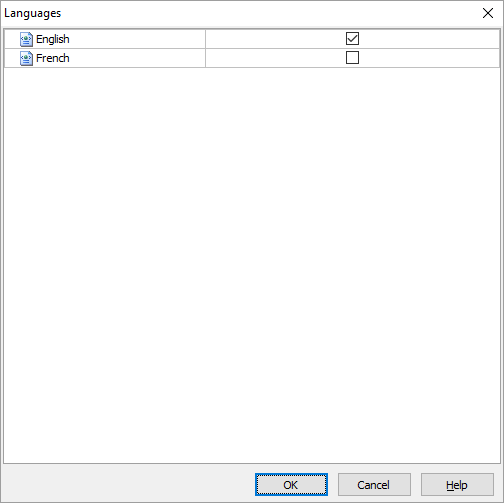
If you want to use multi-language project, click Tools -> Languages to select the languages you want to use in the project. See Multi-Language Project for more details.
By default built-in PHP locales will be used according to the language ID of your language file, if you use the default settings, there is NO need to set up locale settings or locale files.
However, if you want to customize settings for a locale, you can click Tools -> Locale Settings, search and select the locale, the default locale settings will be loaded. After customizing the settings, click OK button to save the settings in your project. Customized locales will be shown as bold in the dropdown list, and the Reset button will be enabled when a customized locale is selected. You can click this button the reset the locale settings to default.
During generation, customized locale settings will be generated as locales files (e.g. en-GB.json) in the "locale" subfolder under the project folder.
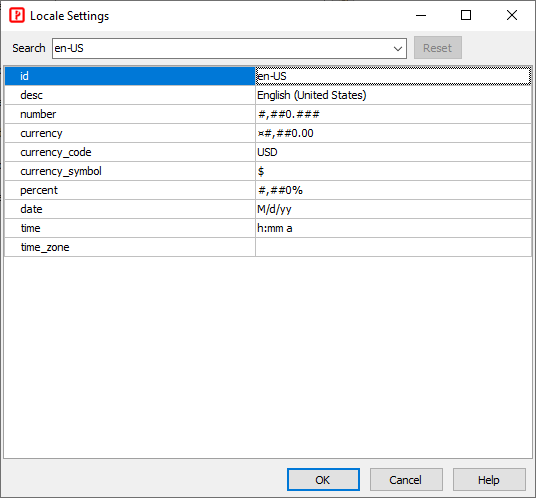
Each locale contains the following settings:
| id | Locale identifier. It must be a RFC 4646 language tags (which use hyphen, not underscore) including the region (e.g. en-US), if applicable. You can search an id from above Locale Settings form. | |||||||||||||||
| desc | Description of the locale, e.g. English (United States) | |||||||||||||||
| number | Number format of the locale in ICU DecimalFormat (see the Patterns section for complete information), e.g. #,##0.###
|
|||||||||||||||
| currency | Currency format of the locale in ICU DecimalFormat (see the Patterns section for complete information), e.g. ¤#,##0.00
|
|||||||||||||||
| currency_code | 3-letter ISO 4217 currency code (e.g. USD) | |||||||||||||||
| currency_symbol | Currency symbol (e.g. $) | |||||||||||||||
| percent | Currency format of the locale in ICU DecimalFormat (see the Patterns section for complete information), e.g. #,##0%
|
|||||||||||||||
| decimal_separator | Decimal separator for replacing the . in number/currency/percent patterns. Note Using different decimal separator in number/currency/percent patterns is not supported. | |||||||||||||||
| grouping_separator | Grouping separator for replacing the , in number/currency/percent patterns. Note Using different grouping separator in number/currency/percent patterns is not supported. | |||||||||||||||
| numbering_system | Numbering system. Default is empty, default numbering system of the locale will be used. For example, "ar-*" locales will use the default "arab" numbering system. If you want to use 0-9, you can set this setting to the "latn". | |||||||||||||||
| date | Date format in ICU Date/Time Format Syntax, e.g. M/d/yy | |||||||||||||||
| time | Time format in ICU Date/Time Format Syntax, e.g. h:mm a | |||||||||||||||
| timezone | Time zone, see List of Supported Timezones. Default is null. If null, the default UTC will be used. |
Notes
Multi-Language Property Editor
Some text properties support Multi-Language. This editor allows you to enter your property values for each language. See Multi-Language Project for details.
When clicked, PHPMaker will try to check if there are updated template (and extensions) on the official website and download them to replace those on your machine. Your PC must be connected to the internet for this feature to work.
Notes
PHPMaker allow you to modify the menu in the generated site, to open the menu editor, click Tools -> Menu Editor in the main menu or click the "Menu Editor" icon in the toolbar.
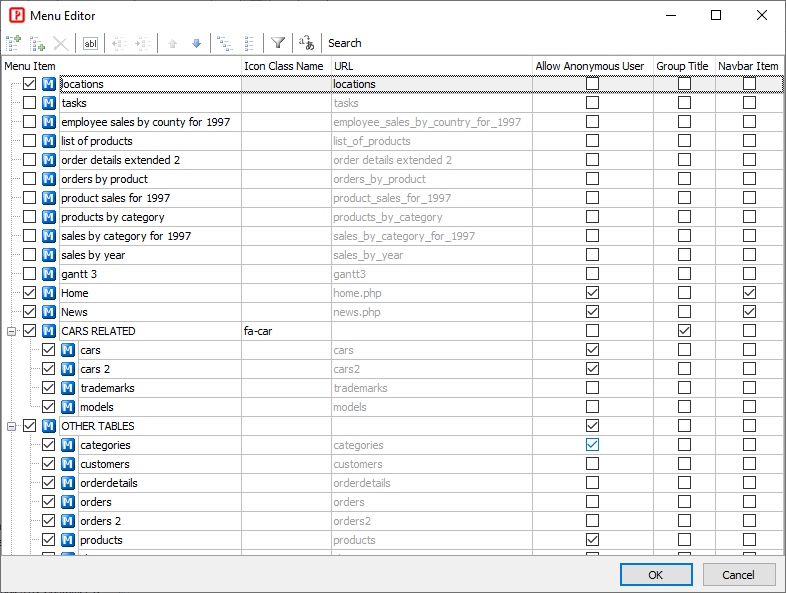
Use the following toolbar buttons to manage your menu items:
| Add item | Add a new menu item. You can add new menu items and link them to your own URLs. Just click the button to add and then enter your URL. Note that the URL of the List pages of the tables are uneditable, they will be generated by PHPMaker automatically. |
| Add child item | Add a child menu item to the focused menu item. You can also easily drag-and-drop the icon of a menu item to another menu item to create child menu items. |
| Delete | Delete the focused menu item |
| Edit item | Edit the displayed text of the focused menu item. You can also click the text directly to edit. |
| Post | Post the changes you make to the focused menu item |
| Cancel | Cancel the changes you make to the focused menu item |
| Refresh | Refresh the menu items |
| Move up one level | Move the focused menu item up one level |
| Move down one level | Move the focused menu item down one level |
| Move Up | Move the menu item up |
| Move Down | Move the menu item down |
| Expand all items | Expanse all menu items so all menu items of each level are shown |
| Collapse all items | Collapse all menu items so only menu items of the first level are shown |
| Multi-Language | Show Multi-Language Property Editor for editing unicode menu text |
| Search | Search for menu items |
The properties of menu item are:
| Menu Item | You can show/hide the menu items by checking/unchecking the checkboxes beside the menu item text. If a parent menu item is hidden, all the child items will also be hidden. |
| Icon Class Name | The icon class name. Font Awesome 5 (Free) class names are supported (e.g. "fas fa-car") |
| URL | URL of custom menu item. (For tables, the URL is the List page of the table by default.) |
| Allow Anonymous User | If your custom menu items requires login, uncheck this option. For tables, this setting is same as the List permission for the Anonymous user level in Advanced Security. (See Security Settings.) |
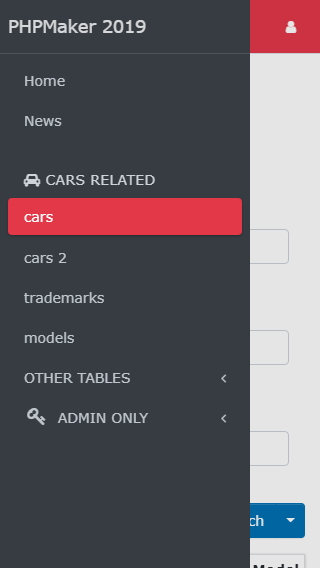
| Group Title | Group Title is to be set up in the same way as a sub menu. You can enable Group Title for the parent menu item. A Group Title looks like the follows (the icon is optional):
Notes
|
| Navbar Item | Show the menu item at the top navbar instead of the vertical menu. Notes
|
After modifying, make sure you click OK to save the changes.
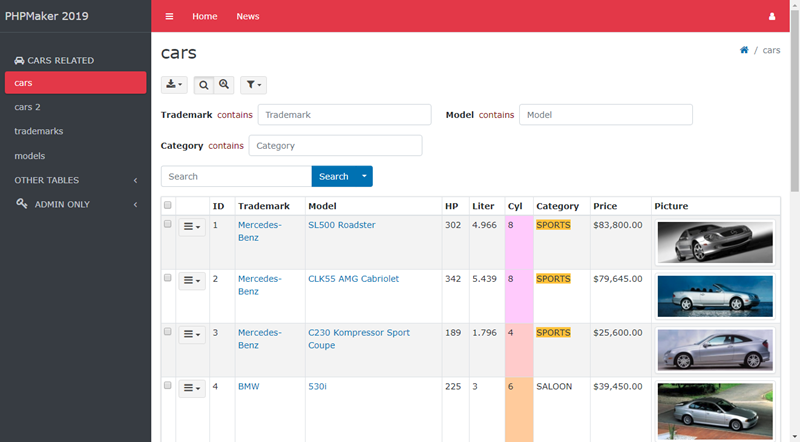
By default, the menu is vertical.
If all menu items are set as navbar items, the left vertical menu will be hidden and top navbar will become like a horizontal menu.
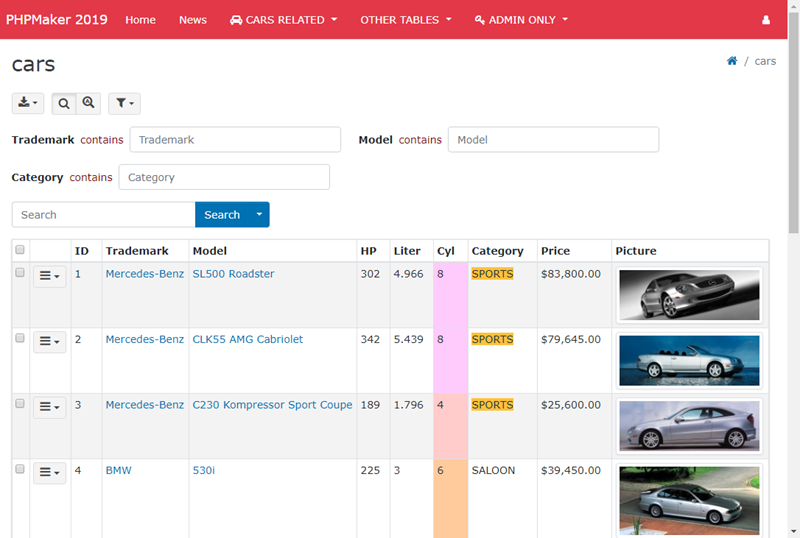
In ALL cases, the mobile menu is vertical.
Manage JavaScripts and stylesheets for your project. These scripts will be included in the layout.php. The path(s) can be absolute URL, relative URL or absolute physical path. Absolute/Relative URL is recommended over physical path.
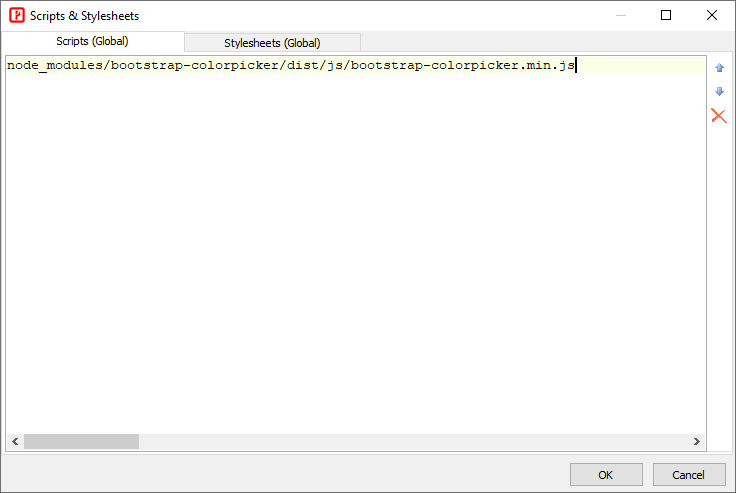
You can enter JavaScript and stylesheet paths in the JavaScripts(Global) and Stylesheets(Global) respectively. One line for each path.
Notes
| Absolute URL | Absolute URL(s), e.g. https://host/path/xxx.js (absolute remote URL with protocol) |
| Relative URL | Relative URL(s) (relative to the project folder), e.g. node_modules/bootstrap-colorpicker/dist/js/bootstrap-colorpicker.min.js |
You can add your Composer packages to the project. Search for the package you want in the Search box, select and then click the Add button to add the package to the project. The latest version will be inputted automatically. If you need to use other version, enter your version number manually.
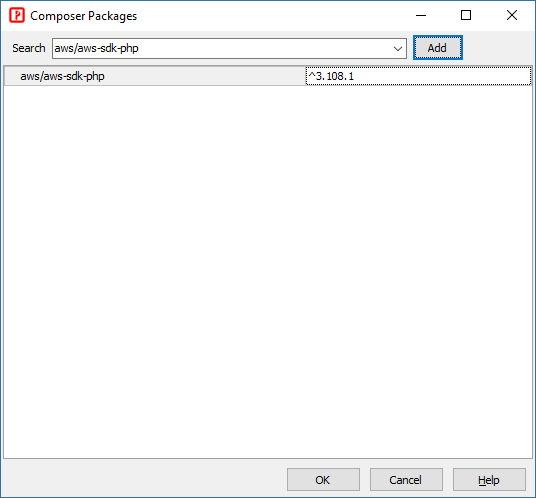
If Composer packages are added to project, PHPMaker will run composer update after generation. The Composer packages will be installed under the vendor folder, then you can use them in your project directly in your PHP code without the need to include them yourself. If you are not familiar with Composer yet, please see Composer documentation Basic usage first.
You can add your npm packages to the project. Search for the package you want in the Search box, select and then click the Add button to add the package to the project. The latest version will be inputted automatically. If you need to use other version, enter your version number manually. To delete a package, right click the item and select Delete.
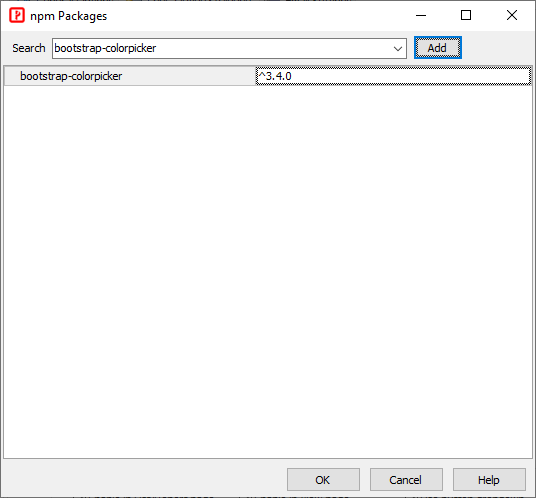
If npm packages are added to project, PHPMaker will run npm install or npm update after generation. The npm packages will be installed under the node_modules folder, then you can use them in your project by including them with Scripts and Stylesheets (see above).
Database, Table and Field Variable Names
When writing server side code such as server events, you may need to specify database, table or field by its variable names. For the main database, the variable name is "DB", e.g.
$value = ExecuteScalar("SELECT MyField FROM MyTable WHERE...", "DB");
In most cases, if the database is the main database, you can skip the database variable name, e.g.
$value = ExecuteScalar("SELECT MyField FROM MyTable WHERE...");
But if the database is a linked database, you must specify the database variable name, e.g.
$value = ExecuteScalar("SELECT MyField FROM MyTable WHERE...", "MyLinkedDB");
The variable name of the linked database can be found in the Add Linked Table form, read Linked Tables.
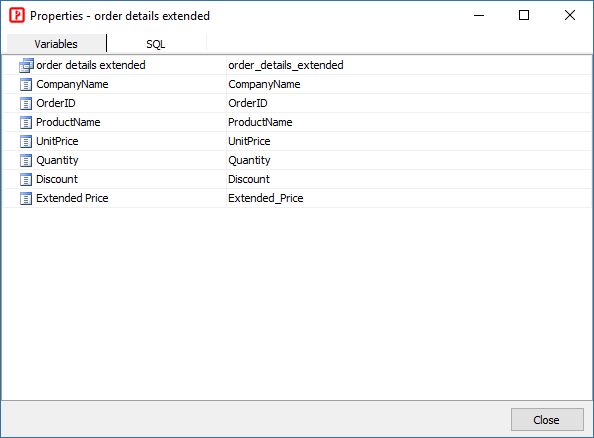
As for table and field variable names, if the table/field name is alphanumeric, the table/field variable name is same as the table/field name. Otherwise, spaces are replaced by underscores, and other non alphanumeric characters are replaced by their hexadecimal string representation of their unicode value. If the variable is a reserved word or starts with a digit, it will be prepended with an underscore. To check the table/field variable names used by the project, you can go the Database pane, right click a table and select Object Properties, you will see the variable names, e.g.