
By default fields are presented in tabular form, e.g. one field per row in Add/Edit/Search/View page, or one record per row in List/Delete page. Custom Templates enable you to re-arrange the fields in your own way.
How it Works
If a Custom Template is provided, PHPMaker splits the original code in many small client side templates enclosed by <template> tags so it is possible to re-assemble HTML from the small client side templates by JavaScript based on your provided Custom Template. In other words, it is simply re-arrangement of existing HTML parts in browser.
During script generation, PHPMaker converts your Custom Template to a client side template and outputs JavaScript to render the template. The client side template is further rendered by JsRender (see Third-Party Tools) which is a third-party JavaScript template engine optimized for high-performance pure string-based rendering. Your Custom Template can make use of its features to display the field values.
What it Can Do (and Cannot Do)
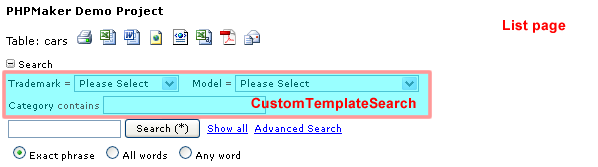
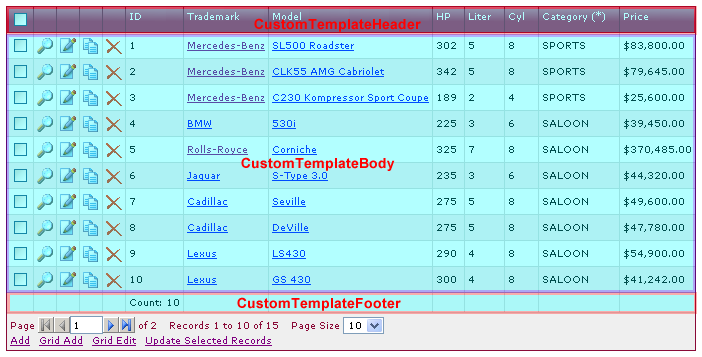
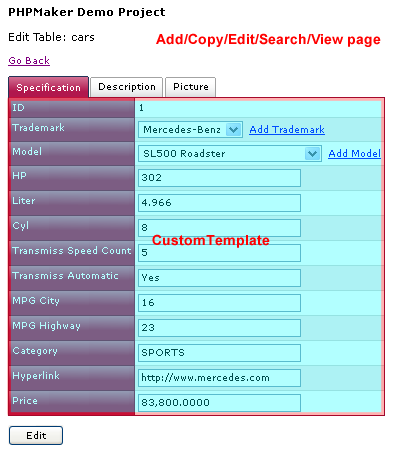
Custom Templates let you customize the layout of the fields originally placed in the main HTML table of the page, they cannot customize HTML outside those regions. The customizable regions are highlighted as follows:
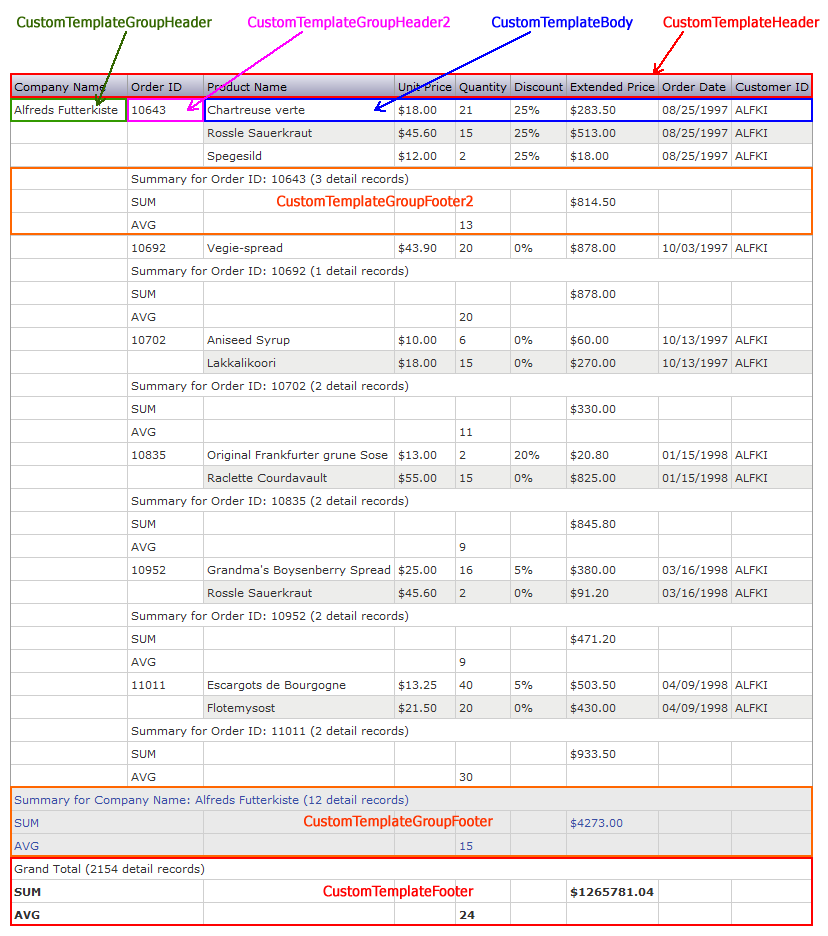
Custom Template also supports Summary Report (but not Crosstab Report):
To let you create your Custom Templates easily, PHPMaker supports the following Custom Template Tags. Since JsRender template tags use {{ and }} (double curly brackets), in order to let you use them in your Custom Templates, PHPMaker Custom Template Tags use {{{ and }}} (triple curly brackets) to differentiate.
In the following table, field represents the field variable name, see Tools -> Database, Table and Field Variable Names.
IMPORTANT
| {{{field}}} | Field caption, value or other values, depending on where it is used:
|
| {{{caption field}}} | Field caption |
| {{{header field}}} | Field header (caption with sort links) |
| {{{value field}}} | Field value (or input) without caption. |
| {{{dbvalue field}}} | Field raw value from database, NOT HTML. The value is straight from database and is unformatted. For use in CustomTemplateBody (List/Delete pages), CustomTemplateHeader/Body/Footer (Summary pages) or in CustomTemplate (other pages) only. NOT applicable to other Custom Templates. NOT applicable to Add/Search/Register pages since there are no database values in those pages.
Important Notes
Example 1 - Output the field value directly {{: {{{dbvalue field}}} }} Example 2 - Output the field value with JavaScript method of the data type with JsRender {{:...}} tag. {{: {{{dbvalue field}}}.toUpperCase() }} Example 3 - Output HTML-encoded field value with JsRender HTML-encode tag {{>...}}. {{> {{{dbvalue field}}} }} Example 4 - Output field value with JsRender built-in URL encoder {{url:...}}. <img src='{{url: {{{dbvalue field}}} }}'/> Example 5 - Output field value with JsRender built-in attribute encoder {{attr:...}}. <div title='{{attr: {{{dbvalue field}}} }}'>...</div> Example 6 - Output field value with JsRender {{if ...}} and {{else ...}} tags. {{if {{{dbvalue field}}} == "Y" }}Yes{{else {{{dbvalue field}}} == "N" }}No{{else}}Unknown{{/if}} |
| {{{value2 field}}} | Search value 2. For use with Search page or Extended Search panel only. |
| {{{operator field}}} | Search operator. For use with Search page or Extended Search panel only. |
| {{{operator2 field}}} | Search operator 2. For use with Search page or Extended Search panel only. |
| {{{condition field}}} | Search condition. For use with Search page or Extended Search panel only. |
| {{{cell_attrs field}}} | Cell attributes for the field in the current row (originally for the <td> tag of the field). For use in List/Delete/Report page only. |
| {{{list_options}}} or {{{list_options n}}} |
List options with <td> tags. Each list option is enclosed by "<td>" and "</td>". For use in List page only. n is the "rowspan" attribute of the <td> tag and it is optional. If not specified, default is 1. |
| {{{list_options_2}}} | List options with <span> tags. Each list option is enclosed by "<span>" and "</span>". For use in CustomTemplateBody (List Page) only. |
| {{{list_option xxx}}} | List options with name xxx. For use in CustomTemplateBody (List Page) only. Possible values of xxx are same as those used in server events, i.e.
|
| {{{page_n}}}...{{{/page_n}}} | Multi-Page template tag for page n. The content inside the tags is the Custom Template for page n. |
| {{{row_attrs}}} | Current row attributes (originally for the <tr> tag of the record) . For use in List/Delete page only. |
| {{{row_index}}} or {{{row_cnt}}} | Current row index (1-based). For use in List/Delete page only.
This tag will be rendered as an integer only, so it is possible that you output it inside {{if...}} tag to render conditionally, e.g. |
| {{{confirm_password}}} | Text input (with caption) for password confirmation. For use in Registration Page only. |
| {{{value confirm_password}}} | Text input (without caption) for password confirmation. For use in Registration Page only. |
Summary reports support the following tags only:
| {{{field}}} | Field caption or value, depending on where it is used: CustomTemplateHeader - field caption (supports sorting) CustomTemplateGroupHeader<n> - field value only CustomTemplateBody - field value only |
| {{{caption field}}} | Field caption |
| {{{value field}}} | Field value |
| {{{count}}} | Number of detail records in the group. This tag will be rendered as an integer. |
| {{{row_index}}} or {{{row_cnt}}} | The row index (1-based) of the detail record in the group. This tag will be rendered as an integer. |
| {{{sum|avg|min|max|cnt field}}} | Field group summary value (Sum/Average/Minimum/Maximum/Count). For use in CustomTemplateFooter and CustomTemplateGroupFooter<n> only.
Note There must be Grouping Levels (see Summary Report Setup) for this tag to work.
|
| {{{pagesum|pageavg|pagemin|pagemax|pagecnt field}}} | Field page summary value (Sum/Average/Minimum/Maximum/Count). For use in CustomTemplateFooter only.
Note The setting Show page summary (see Summary Report Setup) must be enabled for this tag to work.
|
| {{{grandsum|grandavg|grandmin|grandmax|grandcnt field}}} | Field grand summary value (Sum/Average/Minimum/Maximum/Count). For use in CustomTemplateFooter only.
Note The setting Show grand summary (see Summary Report Setup) must be enabled for this tag to work.
|
| {{{current_filters}}} | Current filters of the report Note The advanced setting Show current filters or Show drill down filters must be enabled for this tag to work, see Advanced Settings. |
How to Use
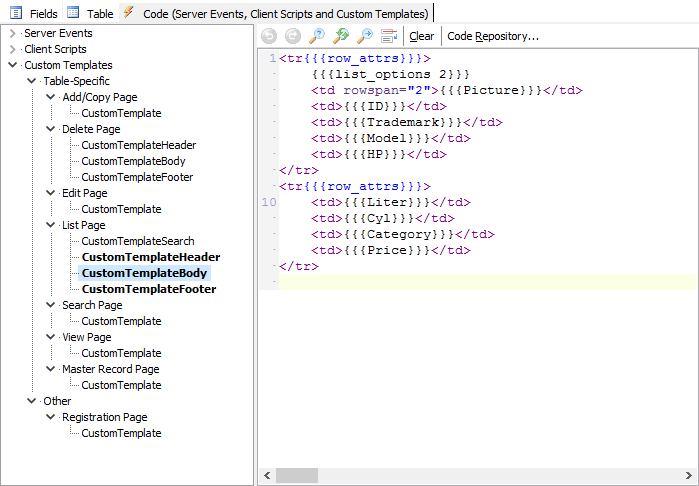
To enter your Custom Template for a table, follow the following steps:
| List/Delete Pages | |
| CustomTemplateHeader | The header of the Custom Template. For example, you can place table header here. |
| CustomTemplateBody | This is the custom template body. You can place template for each row here. |
| CustomTemplateFooter | This is the custom template footer. For example, you can place table footer here. |
| List Pages with Extended Search | |
| CustomTemplateSearch | The Custom Template for Extended Search in List page, see Bootstrap Forms Layout or Grid system. |
| List Pages with Multiple Columns | |
| CustomTemplateCard | The Custom Template for a single card in multi-column List page, e.g. <div class="card">...</div>, see Bootstrap Forms Cards. |
| Other Pages | |
| CustomTemplate | The Custom Template for the form content, see Bootstrap Forms Layout |
| Summary Reports | |
| CustomTemplateHeader | The header of the Custom Template. For example, you can place table header here. |
| CustomTemplateGroupHeader<n> | The header for the 1st to 6th group (where n = 2-6). For Summary reports only. You can put report group level information (such as group caption and value) in this section of the custom template. If you have two grouping fields in your reports, enter the custom templates for the two groups only. |
| CustomTemplateBody | This is the custom template body. You can place template for each row here. |
| CustomTemplateGroupFooter<n> | This is the group footer for the 1st to 6th group (where n = 2-6). For Summary reports only. |
| CustomTemplateFooter | This is the custom template footer. For example, you can place table footer here. |
Then just generate and run your scripts in your browser as usual.
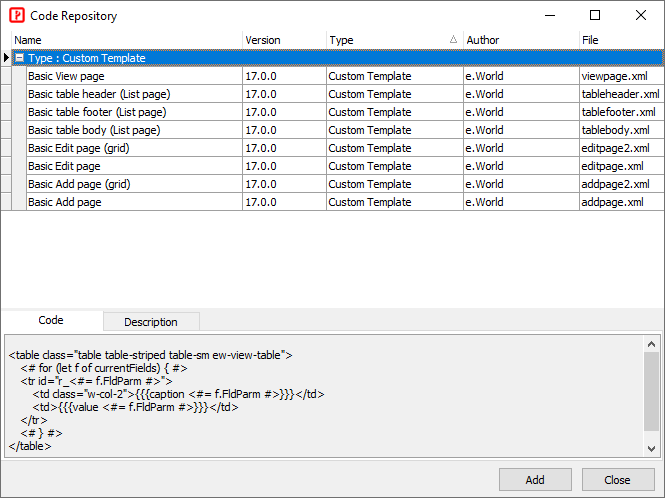
Tips
Examples
Example 1 - Custom Template in Add/Edit/Search/View page or Extended Search in List page
{{{Trademark}}} {{{Model}}}<br>
{{{HP}}} {{{Liter}}}
If you want to have more control on the layout, use DIV and SPAN with CSS styles, e.g.
<div class="ew-row"><span class="ew-cell">{{{Trademark}}}</span><span class="ew-cell">{{{Model}}}</span></div>
<div class="ew-row"><span class="ew-cell">{{{HP}}}</span><span class="ew-cell">{{{Liter}}}</span></div>
or use a HTML table, e.g.
<table class="ew-table">
    <tbody>
        <tr><td>{{{Trademark}}}</td><td>{{{Model}}}</td></tr>
        <tr><td>{{{HP}}}</td><td>{{{Liter}}}</td></tr>
    </tbody>
</table>
Example 2 - Custom Template in Add/Edit/Search/View page (Multi-Page)
{{{page_1}}}
<div class="ew-row"><span class="ew-cell">{{{Trademark}}}</span><span class="ew-cell">{{{Model}}}</span></div>
<div class="ew-row"><span class="ew-cell">{{{HP}}}</span><span class="ew-cell">{{{Liter}}}</span></div>
{{{/page_1}}}
{{{page_2}}}
<div class="ew-row">{{{Description}}}</div>
{{{/page_2}}}
{{{page_3}}}
<div class="ew-row">{{{Picture}}}</div>
{{{/page_3}}}
Example 3 - Custom Template in List page using {{{list_options_2}}}
CustomTemplateHeader
<table class="ew-table">
    <tbody>
CustomTemplateBody
<tr{{{row_attrs}}}>
<td>
<div class="ew-row">
<span class="ew-cell">
<b>{{{caption Trademark}}}:</b> {{{Trademark}}} </span>
<span class="ew-cell">
<b>{{{caption Model}}}:</b> {{{Model}}} </span>
</div>
<div class="ew-row">
<span class="ew-cell">
<b>{{{caption HP}}}:</b> {{{HP}}} </span>
<span class="ew-cell">
<b>{{{caption Liter}}}:</b> {{{Liter}}} </span>
</div>
<div class="ew-row">{{{list_options_2}}}</div>
</td>
</tr>
CustomTemplateFooter
    </tbody>
</table>
Example 4 - Show each record in 2 rows in List page using {{{list_options n}}} where n is the rowspan. Note: Do not confuse {{{list_options 2}}} with {{{list_options_2}}}.
CustomTemplateHeader
<table class="table ew-table">
    <thead>
        <tr class="ew-table-header">
            {{{list_options 2}}} <th>{{{Trademark}}}</th>
            <th>{{{Model}}}</th>
        </tr>
        <tr class="ew-table-header">
            <th>{{{HP}}}</th>
            <th>{{{Liter}}}</th>
        </tr>
    </thead>
    <tbody>
CustomTemplateBody
<tr{{{row_attrs}}}>
    {{{list_options 2}}} <td>{{{Trademark}}}</td>
    <td>{{{Model}}}</td>
</tr>
<tr{{{row_attrs}}}>
    <td>{{{HP}}}</td>
    <td>{{{Liter}}}</td>
</tr>
CustomTemplateFooter
    </tbody>
</table>
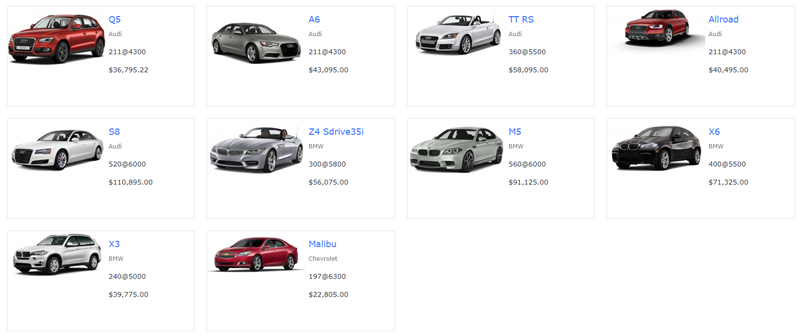
Example 5 - Custom Template in Multi-Column List Page
CustomTemplateCard
<div class="card h-100">
  <div class="row g-0">
    <div class="col-md-6">
      {{{value Picture}}}
    </div>
    <div class="col-md-6">
      <div class="card-body">
        <h5 class="card-title">{{{value Model}}}</h5>
        <p class="card-text"><small class="text-muted">{{{value Trademark}}}</small></p>
        <p class="card-text">{{{value HP}}}</p>
        <p class="card-text">{{{value Price}}}</p>
      </div>
    </div>
  </div>
</div>
Result:
Example 6 - Custom Template for report
See Tutorial - Custom Template for Summary Report.
You can also add global helper functions to ew.jsRenderHelpers object. Also see Using helpers for more information.