
Two Factor Authentication (2FA) is an extra layer of security in addition to the commonly used user name and password security. When enabled, it requires an additional piece of security token that can be retrieved or generated by the user's own hardware device or software.
Google Authenticator is also commonly used for 2FA. It is a free app that you can install on your smart phone which will generate a new security code every 30 seconds. For a first time user, the application will generate a QR code which the user must scan with their phone's camera to add the profile to their Google Authenticator app. He can then use the security code generated from the Google Authenticator for the first and subsequent logins. To install and get more information about Google Authenticator, see Google Authenticator on Google Play, or Google Authenticator on App Store.
How to Use
To enable the feature, you need to enable the Two factor authentication (Google Authenticator) checkbox in User Login Option (see Security Settings -> User Login Options).
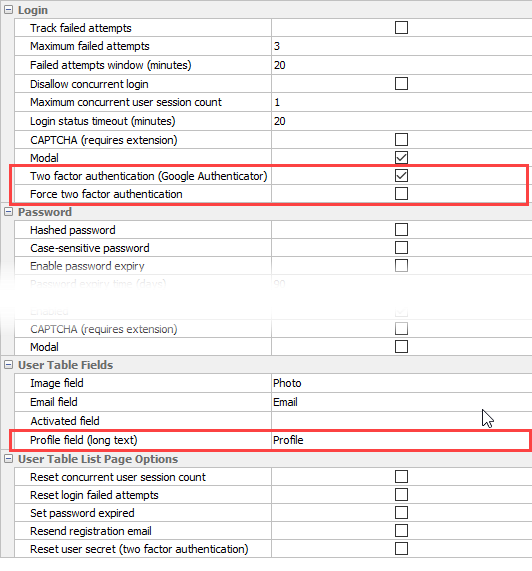
If Force two factor authentication is enabled, all users must login using two Factor Authentication.
If Force two factor authentication is not enabled, the user can opt in or opt out. After generation, an Enable two factor authentication button will be displayed in the user panel after the user logins.
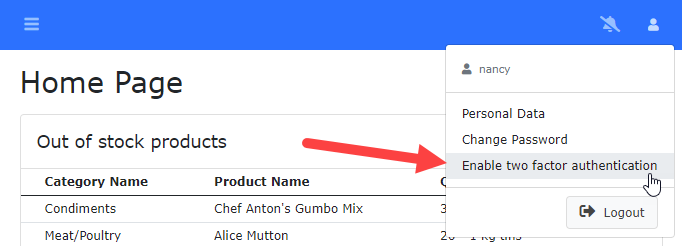
The user can then click the button to enable two factor authentication login option. A dialog box with a QR code will be displayed to prompt the user to scan the QR Code using the Google Authenticator.
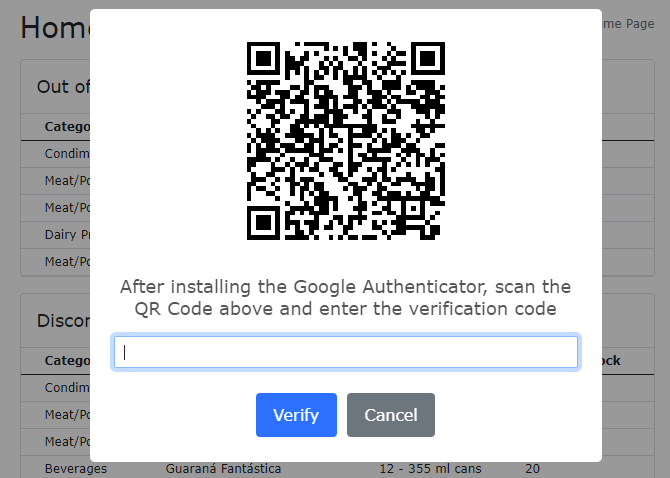
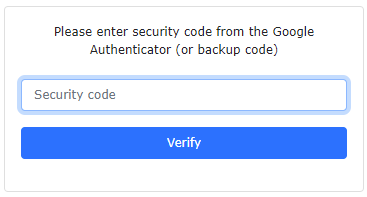
The user can then scan the QR Code to add the user profile to the Google Authenticator. He should enter the security code generated from the Google Authenticator to the input box then click the Verify button to proceed with the 2FA login.
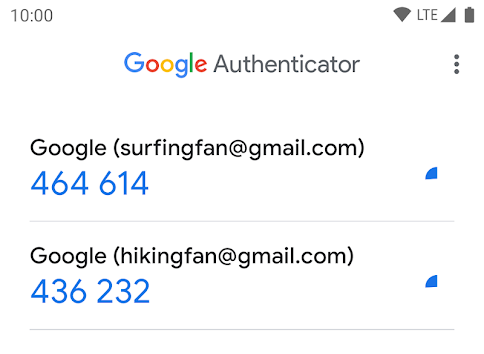
For subsequent logins, the user needs to enter the new security code generated from the Google Authenticator app after logging in successfully with the user name and password.
Backup Codes
When 2FA is enabled, a set of backup codes will also be generated and saved in the user's Profile field. The backup codes are handy when the user has accidentally deleted his profile in the Google Authenticator, or uninstalled the app, or lost his mobile phone. In such cases the user can then use the backup codes as the 2FA security codes for login.
To retrieve the backup codes, after login, the user should click the Backup codes (2FA) button in the user panel.
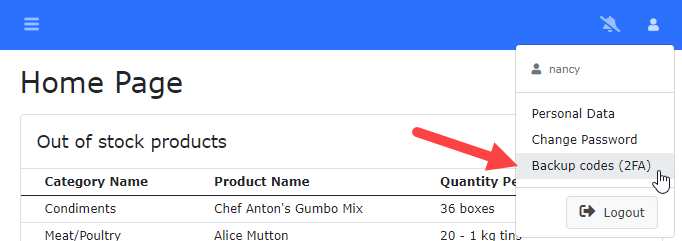
The backup codes dialog box will appear:
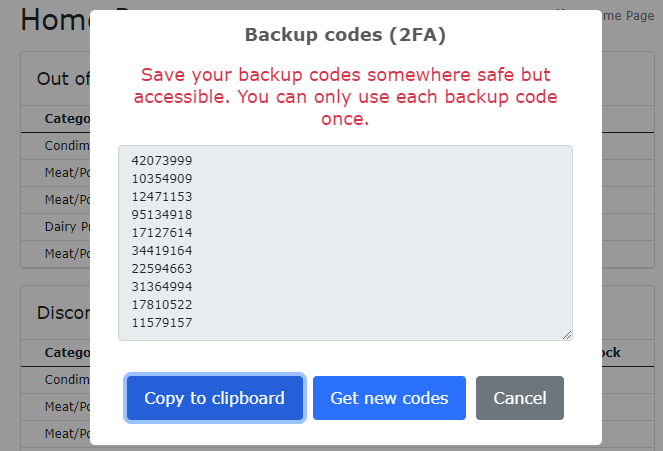
The user can then click the Copy to clipboard to save the backup codes to the clipboard and then save them elsewhere. Note Each backup code can only be used once for login.
He can also click the Get new codes button to get a set of new backup codes. After getting new codes, the old backup codes become invalid, make sure you save the new backup codes.
Reset User Secret (Two Factor Authentication)
To cater for cases when a user is unable to generate the 2FA security code (e.g. due to losing his mobile phone), you can enable the Reset user secret (two factor authentication) option in User Login Option (see Security Settings -> User Login Options):
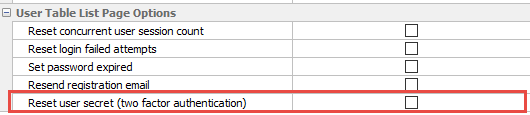
The administrator can then login and go to the list page of the user table to perform the reset for a certain user. After the reset, the user can then perform the login action again to set up the Google Authenticator as above.
